title: “Skyvern: Automate Browser Workflows with AI Agents (21K … description: “Technical guide and comparison.” date: 2026-06-02T00:00:00+08:00 lastmod: 2026-06-02T00:00:00+08:00 tech_stack: [] application_domain: Dev Utils source_version: ’' licensing_model: Open Source license_type: AGPL-3.0 file_size: ’' file_md5: ’' download_url: ’' backup_url: ’' last_maintained: “2026-06-02” draft: false categories: [“dev-utils”] tags: [”] aliases:
- /posts/skyvern-dev-utils-2026/
faqs: - q: ‘How do I install Skyvern-AI/skyvern?’
a: ‘Install with pip and run the quickstart:
bash pip install "skyvern[all"]" skyvern quickstartThe quickstart helps you configure an LLM provider and launches the local server and UI.’ - q: ‘What are the system requirements for running Skyvern-AI/skyvern?’ a: ‘Skyvern needs Python 3.11+ and at least one LLM API key (OpenAI, Anthropic, Gemini, Bedrock, or a local model via Ollama). A modern machine with a few GB of RAM is enough for local use; production scheduling is best run on an always-on server.’
- q: ‘Can I use Skyvern-AI/skyvern for commercial projects?’ a: ‘Yes. The AGPL-3.0 license permits commercial use, but if you modify Skyvern and distribute it or offer it as a network service, your changes must be released under AGPL-3.0. Teams that want to avoid that obligation can use the hosted cloud version instead.’
- q: ‘How do I contribute to the Skyvern-AI/skyvern project?’ a: ‘Contributions are welcome. You can report issues or open pull requests on GitHub; the community is active and responsive to bug fixes and new features.’
- q: ‘Where can I find more information about using Skyvern-AI/skyvern?’ a: ‘See the official site at and the GitHub README, which both cover installation, the API, and example workflows in depth.’—
Introduction
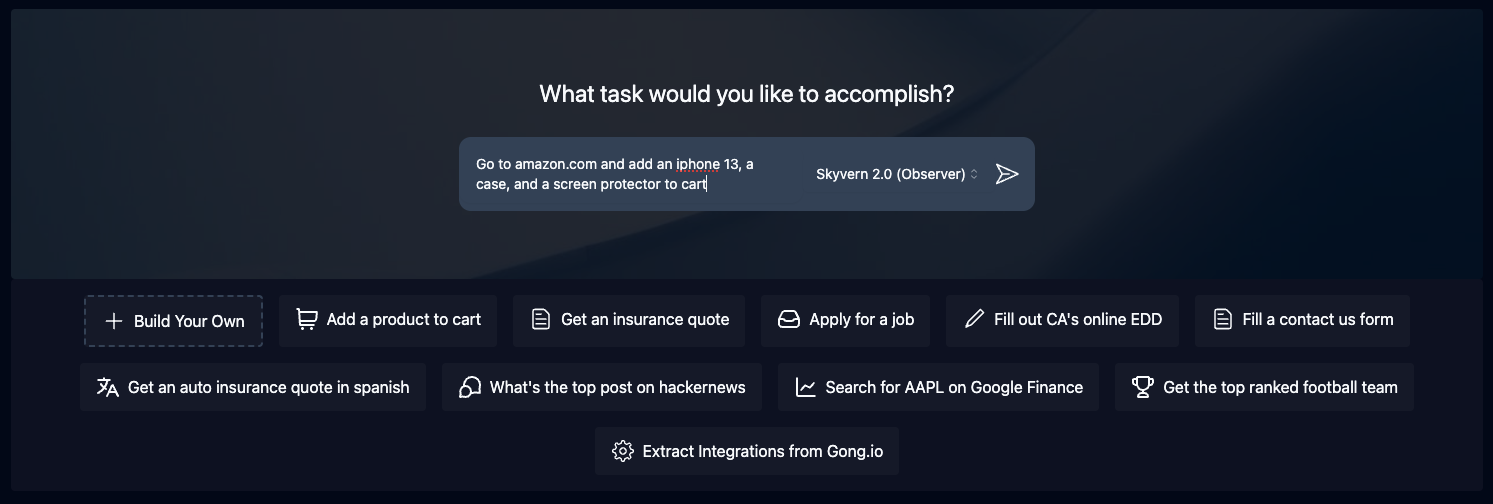
Have you ever scripted a browser task with Selenium or Playwright, only to watch it break the moment the site changed a CSS class or moved a button? With over 21,803 stars on GitHub, Skyvern-AI/skyvern takes a different approach: instead of hard-coding selectors for every site, it uses large language models plus computer vision to understand a page the way a person would, then completes the task you describe in plain language. This guide walks you through setting up Skyvern and using its real API.

skyvern overview (source: Skyvern-AI/skyvern repo, via dibi8 analysis)
What Is Skyvern?
Skyvern is an open-source tool that automates browser-based workflows using AI agents. Developed by Skyvern-AI, it lets you describe a goal in natural language — “log in and download last month’s invoice”, “fill out this application form”, “extract every product name and price” — and the agent figures out how to carry it out in a real browser.
The key idea is that Skyvern reasons about each page visually rather than relying on brittle XPath or CSS selectors. Because it interprets the live DOM and a rendered screenshot with a vision-capable LLM, the same workflow can keep working across thousands of different sites, and it tends to survive layout changes that would break a traditional script.
With a strong community backing — over 21,803 stars on GitHub — Skyvern has gained real traction among developers looking for resilient automation.
How Skyvern Works
Skyvern combines several pieces to turn a plain-language instruction into reliable browser actions: 1. LLM-driven planning: You provide a prompt describing the goal. A large language model breaks it down into the concrete steps needed to reach it. Skyvern is model-agnostic and supports OpenAI, Anthropic Claude, Google Gemini, AWS Bedrock, and local models via Ollama, among others. 2. Computer vision for element recognition: Rather than depending on fixed selectors, Skyvern feeds the rendered page (DOM plus a screenshot) to a vision-capable LLM to identify the right elements to click, type into, or read from. This is what makes it robust to layout changes. 3. Playwright for browser control: The actual clicking, typing, and navigation runs on Playwright, a mature browser-automation framework, so Skyvern inherits solid support for modern web apps.
Under the hood every task is stored in a local database (SQLite by default, or Postgres), which makes runs reproducible and lets you inspect what the agent did step by step.

skyvern in action (source: Skyvern-AI/skyvern repo, via dibi8 analysis)
Installation & Setup
To run Skyvern as a scheduled production job you want an always-on box — spin one up on DigitalOcean (free trial credit for new accounts), or HTStack for low-latency Hong Kong VPS (same IDC that hosts dibi8.com).
Installing Skyvern is straightforward if you’re familiar with Python. You’ll need Python 3.11+ and at least one LLM API key.
Using pip
Install the full package, which includes the local UI and server: ````bash pip install “skyvern[all]”
If you only need the SDK to call Skyvern from your own code, the lighter install is enough: `````bash
pip install skyvern
Quickstart
After installing, the fastest way to get a working environment is the bundled quickstart command. It walks you through configuring an LLM provider, then launches the local server and web UI backed by SQLite: `````bash skyvern quickstart
If you prefer a Postgres-backed setup, pass the flag: `````bash
skyvern quickstart --postgres
You can also start the pieces independently: `````bash skyvern run server # API server only skyvern run ui # web UI only
### Configuration

Skyvern needs at least one LLM API key, which it reads from a ``.env`` file in your project. A minimal example using OpenAI looks like this: `````bash
# .env
ENABLE_OPENAI=true
OPENAI_API_KEY=sk-your-key-here
The quickstart command can generate this file for you interactively. By default Skyvern stores its data in a local SQLite database at ~/.skyvern/.
Common Error and Fix
A frequent first-run problem is the server starting but every task failing because no LLM provider is enabled. If you see errors about a missing or disabled model, confirm that the matching ENABLE_* flag and API key are both present in your .env, for example: `````bash
ENABLE_ANTHROPIC=true
ANTHROPIC_API_KEY=sk-ant-your-key-here
Restart the server after editing ``.env`` so the new values are picked up.

## Core Usage

Skyvern is built around running agentic tasks from a natural-language prompt. Let's look at the real API.

### Example 1: Running a Task

The simplest workflow initializes a local Skyvern client and calls ``run_task`` with a prompt. The agent opens a browser, completes the goal, and returns the result: `````python
import asyncio
from skyvern import Skyvern

async def main(): skyvern = Skyvern.local()
    task = await skyvern.run_task(
        prompt="Go to news.ycombinator.com and find the title of the top post today",
    )
    print(task)

asyncio.run(main())
Example 2: Structured Data Extraction
When you want clean structured output instead of free text, pass a data_extraction_schema. Skyvern returns the extracted fields matching your schema: `````python
import asyncio
from skyvern import Skyvern
async def main(): skyvern = Skyvern.local() task = await skyvern.run_task( prompt=“Extract the top 3 posts on Hacker News”, data_extraction_schema={ “type”: “object”, “properties”: { “posts”: { “type”: “array”, “items”: { “type”: “object”, “properties”: { “title”: {“type”: “string”}, “points”: {“type”: “integer”}, }, }, } }, }, ) print(task)
asyncio.run(main())
### Example 3: Page-Level Commands

For finer control you can drive a browser directly and issue individual AI commands — ``act`` to do something, ``extract`` to read data, and ``validate`` to check a condition: `````python
import asyncio
from skyvern import Skyvern

async def main(): skyvern = Skyvern.local()
    browser = await skyvern.launch_cloud_browser()
    page = await browser.get_working_page()

    await page.act("Click the login button")
    data = await page.extract("Get the product name and price")
    await page.validate("Confirm the user is logged in")
    print(data)

asyncio.run(main())
These examples cover the main entry points: high-level run_task for end-to-end goals, schema-based extraction for clean data, and page-level commands when you need step-by-step control.
- Image:
- Stars: 21,803
- License: AGPL-3.0
- Maintainer: Skyvern-AI
- Homepage: https://www.skyvern.com
- Language: Python
Integration
Skyvern fits into an existing Python codebase without much ceremony, since the SDK is just an async client you can call from anywhere.
Calling Skyvern from a Web Service
Because run_task is async, it slots naturally into an async web framework. Here it is wired into a FastAPI endpoint that kicks off a task on demand: `````python
from fastapi import FastAPI
from skyvern import Skyvern
app = FastAPI() skyvern = Skyvern.local()
@app.get("/automate") async def automate(): task = await skyvern.run_task( prompt=“Go to example.com and click the Submit button”, ) return {“result”: task}
### Configuring via Environment Variables

For production it's cleaner to keep credentials and provider choices in environment variables rather than in code. Skyvern reads these on startup, so a ``.env`` file is the natural place to manage them: `````bash
# .env
ENABLE_OPENAI=true
OPENAI_API_KEY=your_api_key_here
from dotenv import load_dotenv
from skyvern import Skyvern

load_dotenv()

# Skyvern picks up the LLM provider settings from the environment
skyvern = Skyvern.local()
By keeping configuration in the environment, you can move the same code between local, staging, and production without changing a line.
Benchmarks & Real-World Use
Skyvern is aimed at tasks where reliability across many different sites matters more than raw speed. A few areas where it has proven useful: ### Real-World Use Cases
- Form filling at scale: Completing applications, onboarding flows, and data-entry forms across sites that don’t share a common layout — the visual approach means one prompt can handle many variations.
- Web scraping of dynamic content: Extracting structured data from JavaScript-heavy pages where selectors would otherwise be fragile.
- Workflow automation: Multi-step jobs such as logging in, navigating, and downloading documents, which Skyvern can chain together and rerun on a schedule.
Because Skyvern reasons about each page at run time, it trades some latency and LLM cost for resilience: it is generally slower and more expensive per action than a hand-tuned Selenium script, but far less likely to break when a site changes.
System Diagram
The project’s system diagram shows how a prompt flows through LLM planning and vision-based element recognition into Playwright browser actions: 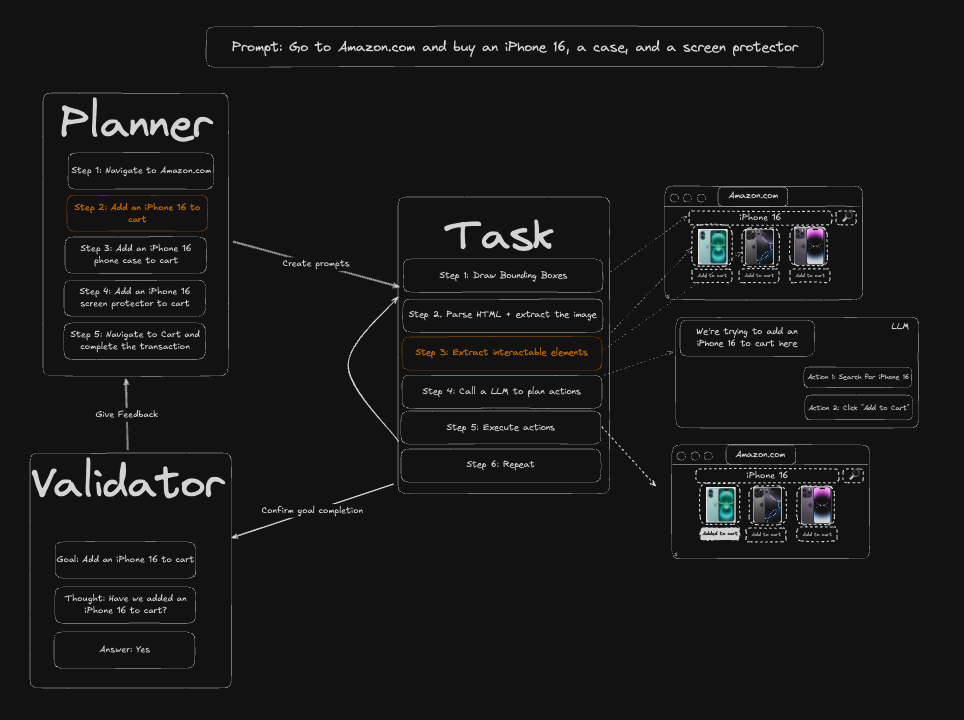
Summary
Skyvern offers a capable approach to automating browser-based workflows for teams that value resilience over micro-optimized speed. Its natural-language interface and vision-based element handling make it a strong fit for automation that has to work across many sites.
Comparison with Alternatives
See also our related open-source tools coverage.
When choosing a browser-automation tool it helps to compare options on community size, approach, ease of use, and maintenance. Below is a comparison of Skyvern with two widely used alternatives, Selenium WebDriver and Playwright. Note that Skyvern is a higher-level AI agent built on top of a framework like Playwright — they solve overlapping but not identical problems.
| Feature | Skyvern-AI/skyvern | Selenium WebDriver | Playwright | |
|
|
|
| | Stars | 21,803 | ~31,000 | ~75,000 | | Approach | AI agent (LLM + vision) | Selector-based scripting | Selector-based scripting | | Programming Language | Python | Java/Python/JS and more | JavaScript/Python/.NET/Java | | Ease of Use | Describe goal in plain language| Requires explicit selectors| Modern API, explicit selectors| | Resilience to UI changes | High (no fixed selectors) | Low | Low | | Speed & cost per action | Slower, LLM cost per run | Fast, no LLM cost | Fast, no LLM cost | | Browser Support | Chromium via Playwright | Multiple browsers | Chromium/Firefox/WebKit | | Maintenance | Active | Active, mature | Active, frequent releases |
Detailed Comparison
Approach: This is the core difference. Selenium and Playwright execute selectors you write by hand, so they are fast and deterministic but break when the page changes. Skyvern describes the goal to an LLM and lets vision pick the elements, trading speed and cost for resilience.
Ease of Use: Skyvern lowers the barrier for tasks where you’d rather not maintain selectors — you write a prompt. Selenium and Playwright give you precise control but expect you to know the page structure.
When to choose which: Reach for Playwright or Selenium when you control the target site and need fast, repeatable runs. Reach for Skyvern when you need to automate across many sites you don’t control, or when layouts change often enough that maintaining selectors is the real cost.
Limitations & Honest Assessment
While Skyvern is a strong tool for resilient browser automation, it has real trade-offs worth understanding: 1. LLM cost and latency: Every action involves at least one LLM call, so Skyvern is slower and more expensive per step than a hand-written script. For high-volume, well-defined tasks on a stable site, a traditional Playwright script may be the better economic choice.
AGPL-3.0 license: The AGPL-3.0 license requires that modifications be released under the same license if you distribute the software or offer it as a network service. This can be a meaningful constraint for organizations that prefer permissive or proprietary licensing. (Skyvern also offers a hosted cloud version for teams who don’t want to self-host.)
Non-determinism: Because an LLM decides each step, the same prompt can occasionally behave differently across runs. Tasks that demand strict, repeatable behavior may need extra validation or guardrails.
Dependence on model quality: Results are only as good as the underlying model. Cheaper or local models may struggle with complex pages, while top-tier models raise the cost per task.
Learning curve for prompting: Although you describe goals in plain language, getting reliable results on tricky pages takes some practice in writing clear, specific prompts and extraction schemas.
These limitations mean Skyvern is excellent for resilient, cross-site automation but not always the right tool for high-volume work on a single, stable site.
Conclusion
Skyvern-AI/skyvern is a capable tool for automating browser-based workflows with AI, boasting over 21,800 stars and active maintenance. If your automation has to survive changing layouts or work across many sites you don"t control, its LLM-plus-vision approach is a genuine step up from selector-based scripting. Head to the GitHub repo, run ````skyvern quickstart```, and try a prompt of your own.
- Join the dibi8 English Telegram group for open-source AI tool drops.
- Read next: related guides on dibi8.
Sources & Further Reading: - GitHub repository: https://github.com/Skyvern-AI/skyvern
- Official docs / README: https://github.com/Skyvern-AI/skyvern#readme
Some links above are affiliate links. dibi8.com may earn a commission if you sign up, at no extra cost to you. Helps keep the site running and the content free.
related open-source tools -> ai-tools-directory related guides on dibi8 -> ai-coding-agent-landscape-2026-skills-mcp-opensource
{ “@context”: “https://schema.org”, “@type”: “Article”, “headline”: “Skyvern: Automate Browser Workflows with AI Agents (21K Stars) — Practical 2026 Guide”, “datePublished”: “2026-06-02”, “dateModified”: “2026-06-02”, “author”: { “@type”: “Organization”, “name”: “Dibi8” }, “publisher”: { “@type”: “Organization”, “name”: “Dibi8”, “logo”: { “@type”: “ImageObject”, “url”: “https://dibi8.com/logo.png" } }, “mainEntityOfPage”: { “@type”: “WebPage”, “@id”: “https://dibi8.com/resources/skyvern-dev-utils-2026" } }

Frequently Asked Questions (FAQ)
问:AI Agent和传统自动化有什么区别?
AI Agent具有自主决策能力,能够根据环境变化调整策略,而传统自动化只能执行预设规则。
问:如何选择合适的AI Agent框架?
考虑因素包括:部署难度、社区活跃度、扩展性、成本。Claude Code适合开发者,AutoGen适合复杂多智能体场景。
问:AI Agent的安全性如何保证?
实施权限最小化、输入验证、审计日志、以及定期安全评估。
问:AI Agent的学习成本有多高?
入门级使用3-5天,高级配置需要2-4周,取决于团队技术基础。
问:能否自定义AI Agent的行为?
是的,通过提示工程、工具定义、记忆系统、以及行为约束来定制。