Marker: Convert PDF, DOCX & EPUB to Markdown/JSON Fast
Marker (datalab-to/marker) converts PDF, DOCX, EPUB and more to Markdown, JSON, HTML and chunks quickly and accurately. 35,694 GitHub stars, GPL-3.0 code license. Covers installation, the CLI and Python API, real code examples, LLM mode, and an honest comparison with alternatives.
- ⭐ 37232
- TypeScript
- GPL-3.0
- Updated 2026-06-02
Introduction #
Turning documents into clean, structured text is one of those jobs that sounds simple until you actually try it on a real PDF full of tables, equations and multi-column layouts. datalab-to/marker is built for exactly that: it converts PDFs and many other document types into Markdown, JSON, HTML or RAG-ready chunks through a deep-learning pipeline, with an optional LLM pass for tricky content. This guide walks you through installation, the command-line tool, the Python API, and an honest comparison with the alternatives so you can decide whether it fits your project.
Let’s get started!

marker overview (source: datalab-to/marker repo, via dibi8 analysis)
What Is marker? #
Marker is a Python document-conversion tool from Datalab that turns PDFs (and images, PPTX, DOCX, XLSX, HTML and EPUB) into Markdown, JSON, HTML and chunked output. It has gained significant traction among developers, with over 35,694 stars on GitHub. Rather than a single OCR step, it runs a pipeline that extracts text, detects page layout and reading order, cleans and formats blocks, and can optionally apply an LLM to improve accuracy on tables, forms and inline math.
How marker Works #
marker is designed to convert documents to Markdown, JSON, HTML and chunks quickly and accurately. Here’s a breakdown of how the pipeline operates:
- Text extraction: Marker pulls text directly from the document where possible and falls back to OCR for scanned or image-based pages.
- Layout & reading order: Deep-learning models detect page layout and the correct reading order, which is what makes multi-column PDFs come out readable.
- Block cleanup & formatting: Each block (heading, paragraph, table, equation, code) is cleaned and formatted, with tables rendered as Markdown/HTML and equations as LaTeX.
- Optional LLM refinement: With
--use_llm, a model (Gemini, Claude, OpenAI or a local Ollama model) is used to improve accuracy on tables, forms and math. - Render & post-process: The blocks are combined and post-processed into your chosen output format.
The simplest way to drive all of this is the CLI, which we cover next.
marker architecture (source: datalab-to/marker repo, via dibi8 analysis)
Installation & Setup #
To run marker as a scheduled production job you want an always-on box — spin one up on DigitalOcean (free trial credit for new accounts), or HTStack for low-latency Hong Kong VPS (same IDC that hosts dibi8.com).
To get started with datalab-to/marker, install it from PyPI.
Using pip #
First, ensure you have Python installed on your system. Then install the marker-pdf package:
pip install marker-pdf
If you need to convert non-PDF formats (DOCX, PPTX, XLSX, EPUB, HTML, images), install the full extras:
pip install marker-pdf[full]
Cloning the Repository #
Alternatively, you can clone the repository directly from GitHub for local development:
git clone https://github.com/datalab-to/marker.git
cd marker
pip install -e .
Common Error and Fix #
A common issue is mixing system and virtual-environment installs, which can lead to “command not found” for marker_single or to dependency conflicts. Make sure your virtual environment is active before installing and running:
# Activate the virtual environment (assuming you're using venv)
source .venv/bin/activate

# Install, then run
pip install marker-pdf
marker_single /path/to/file.pdf
If you hit GPU or model-download issues during the first run, check the repository’s README.md for guidance or open an issue on GitHub.
Core Usage #
Once marker-pdf is installed, you get two CLI entry points: marker_single for one file and marker for a whole folder.
Example 1: Convert a single file #
To convert one document to Markdown (the default output format):
marker_single /path/to/report.pdf
The converted output is written to an output directory; you can control the format with --output_format.
Example 2: Choose the output format #
Marker supports markdown, json, html and chunks (a flattened JSON layout designed for RAG pipelines):
marker_single /path/to/report.pdf --output_format json
Example 3: Convert a folder of documents #
To batch-convert every document in a folder:
marker /path/to/input/folder --output_format markdown
Example 4: Convert specific pages, or use the LLM #
You can limit conversion to a page range and turn on LLM-assisted accuracy:
marker_single /path/to/report.pdf --page_range "0,5-10,20" --use_llm
--page_range accepts comma-separated pages and ranges, and --use_llm routes tricky tables, forms and inline math through a model (Gemini, Claude, OpenAI or Ollama) for higher accuracy. For large multi-GPU jobs there’s also marker_chunk_convert:
NUM_DEVICES=4 NUM_WORKERS=15 marker_chunk_convert ../pdf_in ../md_out
These examples should give you a good starting point. For the full flag list, see the official README on GitHub.
Integration #
marker is a Python library as well as a CLI, so it drops cleanly into scripts, notebooks and pipelines.
Using the Python API #
Convert a file and get the rendered text and extracted images in a few lines:
from marker.converters.pdf import PdfConverter
from marker.models import create_model_dict
from marker.output import text_from_rendered

converter = PdfConverter(artifact_dict=create_model_dict())
rendered = converter("FILEPATH")
text, _, images = text_from_rendered(rendered)
To change the output format or enable the LLM service, drive it through ConfigParser:
from marker.converters.pdf import PdfConverter
from marker.models import create_model_dict
from marker.config.parser import ConfigParser

config_parser = ConfigParser({"output_format": "json"})
converter = PdfConverter(
    config=config_parser.generate_config_dict(),
    artifact_dict=create_model_dict(),
    processor_list=config_parser.get_processors(),
    renderer=config_parser.get_renderer(),
    llm_service=config_parser.get_llm_service(),
)
rendered = converter("FILEPATH")
Marker also ships dedicated converters — TableConverter for tables only, OCRConverter for OCR-only output, and a beta ExtractionConverter that pulls structured data against a Pydantic JSON schema.
Integration with CI/CD Pipelines #
Because it’s a plain CLI, you can run marker as a step in any CI/CD job. Here’s a minimal GitHub Actions example that converts a PDF on every push:
name: Convert PDF to Markdown

on:
  push:
    branches: [ master ]

jobs:
  convert-pdf:
    runs-on: ubuntu-latest
    steps:
      - name: Checkout repository
        uses: actions/checkout@v4

      - name: Set up Python
        uses: actions/setup-python@v5
        with:
          python-version: '3.11'

      - name: Install marker
        run: pip install marker-pdf

      - name: Convert PDF to Markdown
        run: marker_single docs/report.pdf --output_format markdown
This makes marker easy to fold into both notebooks and automated build pipelines.
Benchmarks & Real-World Use #
Throughput #
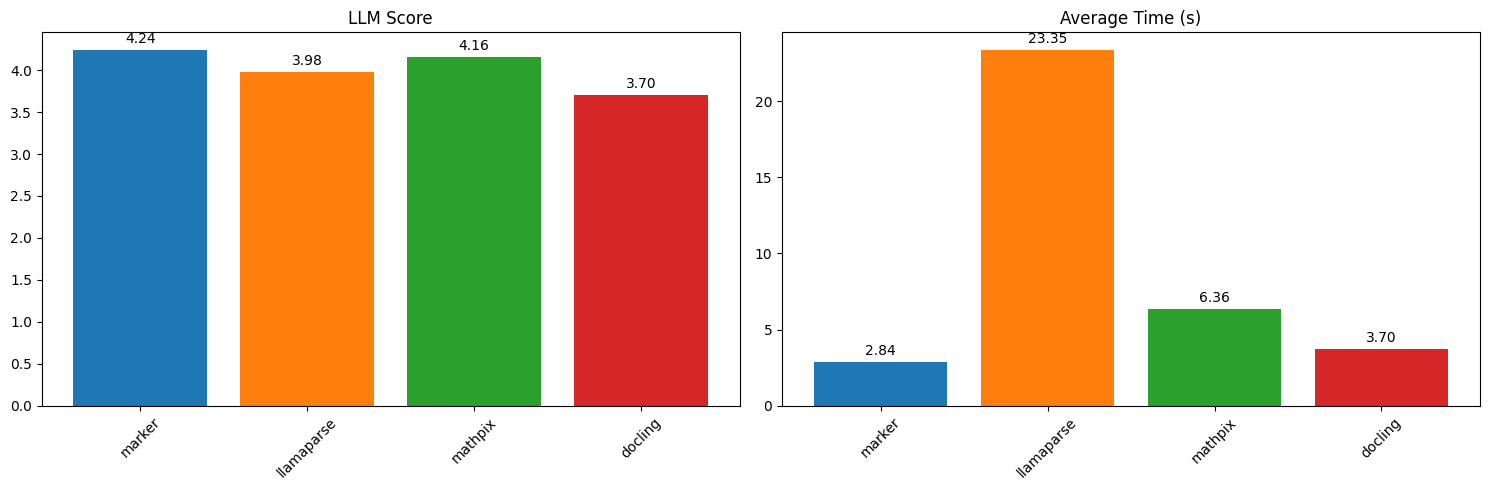
Per the project’s own README, marker can reach about 25 pages per second in batch mode on an H100 GPU. Real-world throughput depends heavily on your hardware, document complexity, and whether --use_llm is enabled (the LLM pass trades speed for accuracy). Treat any single number as a ceiling, not a guarantee, and benchmark on your own documents.
Real-World Use Cases #
Marker is commonly used for tasks such as building document-search and RAG corpora, extracting tables and forms from reports, and converting academic papers, manuals and books into clean Markdown for downstream processing. The chunks output format in particular is aimed at feeding retrieval-augmented-generation pipelines, where each block arrives as self-contained HTML.

marker benchmark results (source: datalab-to/marker repo, via dibi8 analysis)
Comparison with Alternatives #
See also our related open-source tools coverage.
When choosing a PDF-to-Markdown tool, weigh accuracy, format coverage, speed and licensing. Below is a high-level comparison between marker and two common open-source alternatives: pdfplumber (text/table extraction) and pymupdf4llm (a PyMuPDF-based Markdown exporter).
| Feature | datalab-to/marker | pdfplumber | pymupdf4llm |
|---|---|---|---|
| Language | Python | Python | Python |
| Approach | Deep-learning layout + OCR + optional LLM | Rule-based text extraction | PyMuPDF-based extraction |
| Input formats | PDF, image, PPTX, DOCX, XLSX, HTML, EPUB | PDF only | PDF and a few others |
| Output formats | Markdown, JSON, HTML, chunks | Text, tables (dicts) | Markdown |
| OCR / scans | Built-in OCR | No native OCR | Limited |
| LLM mode | Optional (--use_llm) | No | No |
| Best for | Complex layouts, tables, RAG, scans | Precise table/coordinate work | Fast, simple Markdown export |
marker stands out when documents are complex — multi-column layouts, equations, scanned pages or tables — because its layout models and optional LLM pass handle structure that rule-based tools miss. Lighter tools like pdfplumber and pymupdf4llm are faster and dependency-light, and are a better fit when your PDFs are simple, born-digital and text-only. Pick based on how messy your real documents are.
Limitations & Honest Assessment #
While marker is strong on complex documents, it has real tradeoffs worth knowing up front:
- Heavier dependencies & hardware: Marker relies on deep-learning models, so a GPU makes a big difference. On CPU-only machines it works but is much slower, and the install is heavier than rule-based libraries.
- Complex tables aren’t perfect: Tables that span pages or have deeply nested/merged cells can still come out misaligned and may need manual cleanup.
- LLM mode adds cost and latency:
--use_llmimproves accuracy but introduces an external model call (and API cost, unless you run a local Ollama model), so it’s slower and not free. - Speed varies widely: Headline throughput numbers assume high-end GPUs and batch processing; on modest hardware or with LLM mode on, expect substantially slower runs.
- Licensing nuance: The code is GPL-3.0, but the model weights ship under a modified AI Pubs Open Rail-M license that is free for research, personal use and smaller companies, with commercial licensing for larger organizations — check the terms before deploying at scale.
These tradeoffs are important to weigh when deciding whether marker is the right tool for your specific use case.
Conclusion #
With over 35,694 stars and a pipeline built for messy, real-world documents, marker is a strong choice when you need accurate Markdown, JSON, HTML or chunked output from PDFs, Office files and EPUBs — especially when tables, equations or scanned pages are involved. The next step is to install it and run it on one of your own documents:
pip install marker-pdf
marker_single /path/to/your/file.pdf
- Join the dibi8 English Telegram group for open-source AI tool drops.
- Read next: related guides on dibi8.
Sources & Further Reading:
- GitHub repository: https://github.com/datalab-to/marker
- Official docs / README: https://github.com/datalab-to/marker#readme
Some links above are affiliate links. dibi8.com may earn a commission if you sign up, at no extra cost to you. Helps keep the site running and the content free.
💬 Discussion